3.8. Object Inspector
The Object Inspector is the right-side panel that displays and edits properties of the selected object(s), the active layer, or drawing-level settings. Toggle its visibility with the Properties button on the Quick Access Toolbar.
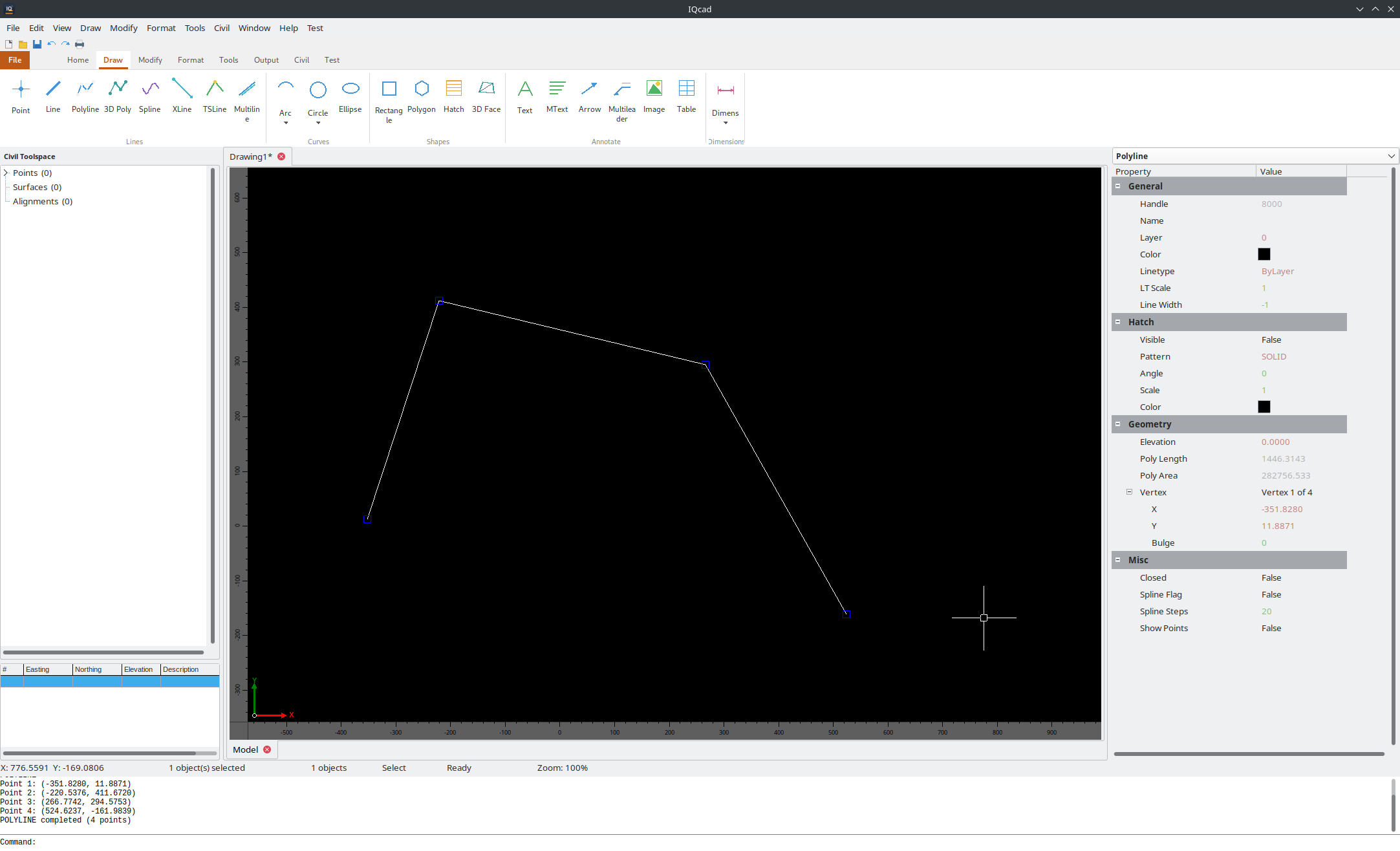
The redesigned Object Inspector with collapsible categories.
3.8.1. Architecture
The inspector is built on TVirtualStringTree — a high-performance tree control that renders property rows as tree nodes organised into collapsible category groups. This replaces the earlier custom panel implementation.
Key design features:
Collapsible categories — click a category header to expand or collapse its properties.
Owner-drawn combo editors — Color properties show an inline colour swatch (no text). Layer combos show colour swatch + name. Linetype combos show a dash pattern preview. Lineweight combos show a thickness preview line.
Value type colour-coding — numeric values are shown in green, strings in orange, read-only values in grey, and multi-select differing values in dimmed italic (“Varies”).
Keyboard navigation — Tab / Shift+Tab cycles through editable rows; Enter commits a value; Escape reverts.
Human-friendly labels — PascalCase property names are automatically converted to spaced labels (e.g.
BackgroundColorbecomes “Background Color”). Proxies can override labels for context-aware naming (e.g.ShowScaleBarbecomes “Show” under the Scale Bar group).
3.8.2. Selection Filter
At the top of the inspector panel is a Selection Filter combo box. Set it to a specific entity type (e.g. Line, Polyline, Circle, Survey Point) to restrict which entity types can be picked on the canvas. Set it to All (default) to allow selection of any entity type.
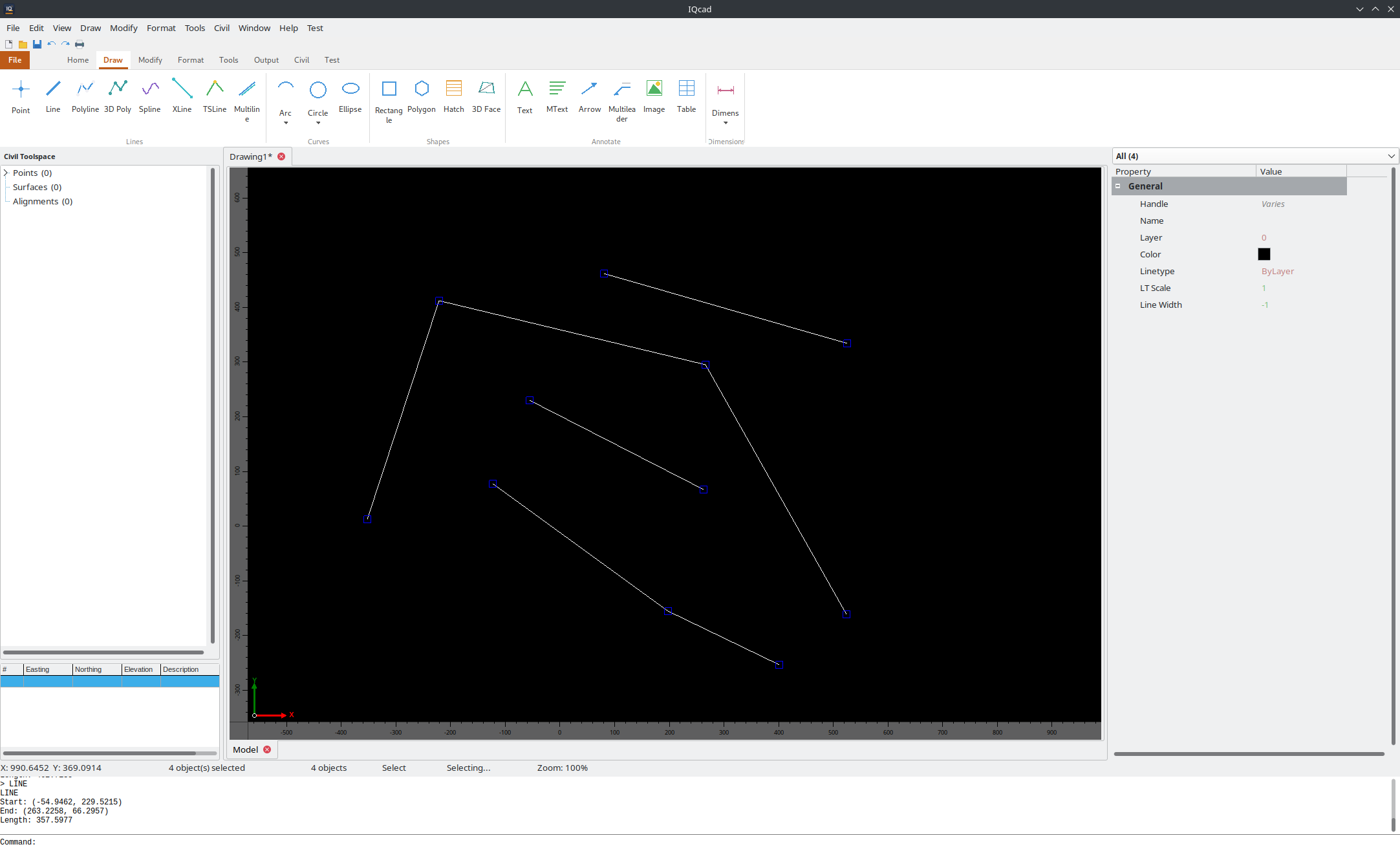
Selection filter combo restricting picks to a specific entity type.
3.8.3. Multi-Selection
Select multiple objects (window, crossing, Ctrl+click, or Ctrl+A) to inspect them all at once. The inspector shows properties shared by all selected entities:
Properties with the same value across all entities display that value normally.
Properties with different values display as italic Varies.
Editing a value applies the change to all selected entities simultaneously.
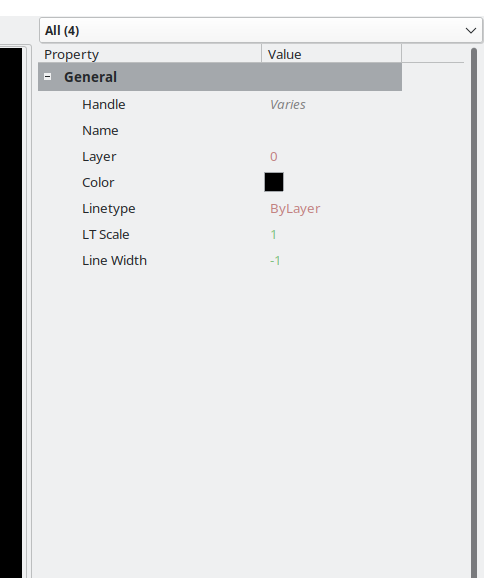
Multi-selection showing “Varies” for differing property values.
3.8.4. Common Properties (All Objects)
Property |
Description |
|---|---|
Handle |
Unique numeric identifier — read-only. |
Name |
Optional user-assigned label for the object. |
Layer |
The layer this object belongs to. Owner-drawn combo shows colour swatch + layer name. |
Color |
Object colour. |
Line Type |
|
Line Width |
Pen width. Owner-drawn combo shows a thickness preview line. |
3.8.5. Canvas / Drawing Defaults
When no object is selected, the inspector shows drawing-level defaults used for new objects, organised into categories:
Property |
Description |
|---|---|
Current Color |
Default colour for new objects ( |
Current Linetype |
Default linetype for new objects. |
Current Line Width |
Default pen width for new objects. |
Grid Visible |
Show or hide the background grid. |
Background Color |
Canvas background colour. |
3.8.6. Line Properties
Property |
Description |
|---|---|
Start Point / End Point |
World coordinates of the endpoints. Edit to reposition precisely. |
3.8.7. Polyline and Multiline Properties
Property |
Description |
|---|---|
Closed |
Whether the polyline is closed (last vertex connects to first). |
Vertex |
Vertex navigation row with [<] and [>] buttons and a label showing Vertex N of M between them. Click the arrows or change the index to navigate. Sub-properties: X, Y, Bulge (Z is also shown for 3D polylines). |
End Caps (Multiline) |
When checked, perpendicular lines are drawn across both ends of the multiline. |
3.8.8. Hatch Properties
Hatch properties are shown on polylines, rectangles, and other entities that support hatching:
Property |
Description |
|---|---|
Hatch Pattern |
Pattern name combo (ANSI31, ANSI32, NET, DOTS, SOLID, etc.). |
Hatch Scale |
Pattern scale factor. |
Hatch Angle |
Pattern rotation angle in degrees. |
Hatch Color |
Hatch line colour. |
Hatch Background Color |
Fill colour behind the hatch pattern. |
Hatch Transparency |
0 (opaque) to 255 (fully transparent). |
3.8.9. 3D Polyline Properties
Property |
Description |
|---|---|
Closed |
Whether the 3D polyline is closed. |
Spline Flag |
Enable Catmull-Rom spline interpolation in full 3D (X, Y, Z). |
Spline Steps |
Number of interpolation steps per spline segment (default 20). |
Point Count |
Number of vertices — read-only. |
Poly Length |
Total polyline length — read-only. |
Vertex |
Navigation row with [<] Vertex N of M [>]. Sub-properties: X, Y, Z. |
3.8.10. Text Properties
Property |
Description |
|---|---|
Text |
The string content. |
Height |
Text height in world units. |
Style Name |
Named text style (font, width factor, oblique angle, bold/italic). |
Bold / Italic |
Per-object override of the style’s weight/style. |
H Align / V Align |
Horizontal and vertical justification. |
Rotation |
Rotation angle in degrees. |
3.8.11. Multileader Properties
Property |
Description |
|---|---|
Text |
Label text content. |
Arrow Style |
Filled, Open, or None. |
Arrow Size |
Arrowhead size in world units. |
Landing Gap |
Length of the horizontal dogleg connecting the leader to the label. |
Text Height |
Label text height in world units. |
Style Name |
Named text style for the label. |
3.8.12. Arc / Circle Properties
Property |
Description |
|---|---|
Centre |
World coordinates of the arc/circle centre. |
Radius |
Radius in world units. |
Start Angle / End Angle (Arc) |
Arc extents in degrees. 0° = east; increases counter-clockwise. |
3.8.13. Dimension Properties
Property |
Description |
|---|---|
Dim Style |
Dropdown to select a named dimension style from the style library. |
Text Override |
Custom text to display instead of the measured value. Use |
Measurement |
The computed value (read-only). |
Rotation |
Rotation angle for linear rotated dimensions. |
3.8.14. AEC Survey Point Properties
Property |
Description |
|---|---|
Point Number |
Numeric survey identifier. |
Point Name |
Descriptive name. |
Northing / Easting |
World coordinates — kept in sync with the object’s drawn position. |
Elevation |
Z value (stored; not used for 2D drawing position). |
Raw Description |
Survey field code (e.g. |
Full Description |
Expanded description for reports. |
Point Group |
Group name for filtering in the Civil Toolspace and exports. |
Lock Point |
Prevents accidental moves when checked. |
Point Style Name |
Named style from the Point Style Library (see Format Settings). |
3.8.15. Surface Properties
Property |
Description |
|---|---|
Style Name |
Named surface style (Standard, Triangles & Contours, Contours Only, or a user-defined style). See Format Settings. |
Point Count |
Number of TIN vertices — read-only. |
Triangle Count |
Number of Delaunay triangles — read-only. |
Surface Area |
Total 3D surface area — read-only. |
Min Elevation / Max Elevation |
Elevation range — read-only. |
Show Contours |
Toggle contour line display. |
3.8.16. Alignment Properties
Property |
Description |
|---|---|
Style Name |
Named alignment style controlling centerline, ticks, PI markers, and direction arrows. |
Label Style Name |
Named alignment label style controlling station labels, PI data, and curve data labels. |
Start Station |
Station value at the beginning of the alignment. |
Total Length |
Total alignment length — read-only. |
3.8.17. Table Properties
Property |
Description |
|---|---|
Insert X / Insert Y (Geometry) |
Coordinates of the table insertion point. |
Rotation (Geometry) |
Table rotation angle in degrees. |
Rows (Table) |
Number of rows (including title and header rows if present). |
Cols (Table) |
Number of columns. |
Style Name (Table) |
Named table style (Standard, Schedule, Legend, or a user-defined style). See Format Settings for style details. |
Title (Table) |
Text displayed in the title row (visible only when the style has HasTitle enabled). |
3.8.17.1. Image Properties
Property |
Description |
|---|---|
Image Path |
File path of the source image (referenced mode). |
Pixel Size |
Pixel dimensions of the source image (read-only, “W x H”). |
Embedded |
When True, image bytes are stored inside the drawing file. |
World Width / World Height |
Dimensions of the image in world units. |
Rotation |
Counter-clockwise rotation in degrees. |
Opacity |
0 (transparent) to 255 (fully opaque). |
Show Image |
When False, a dashed placeholder frame is displayed instead. |
Clip Enabled |
Enable rectangular sub-region clipping. |
3.8.18. Viewport Properties
When a paper-space viewport is selected, the inspector shows categories for:
View — scale, center position, locked flag.
Grid — viewport grid visibility and spacing.
Border — tick marks, ladder marks, crosses with coordinate labels, border interval.
North Arrow — visibility, size, position.
Scale Bar — visibility, style, position.
3.8.19. Tunnel Section Line Properties
See Tunnel Analysis and Coordinate Transformations for the full list of Tunnel Section Line deviation-analysis properties.
3.8.20. Set Properties
Set-type properties (e.g. OsnapTypes) expand in-place as checkbox
children instead of opening a popup dialog. Check or uncheck individual
items to modify the set value.
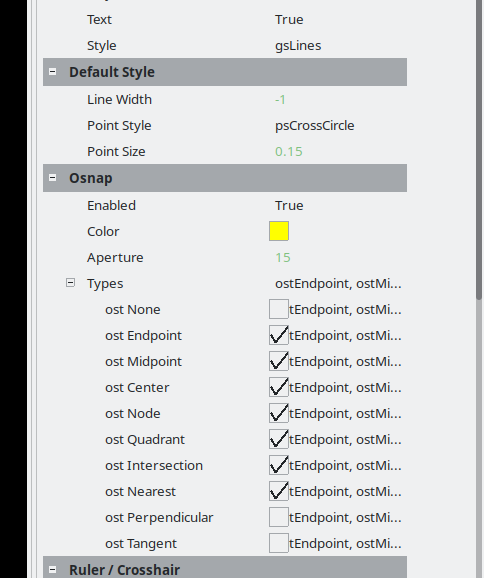
A set property expanded as checkbox children.