3.6. Selection
3.6.1. Selection Methods
Action |
Result |
|---|---|
Click an object |
Selects it; deselects any previous selection. |
Click empty space |
Deselects all objects. |
Drag left → right |
Window selection — selects objects fully inside the rectangle. |
Drag right → left |
Crossing selection — selects objects that touch or cross the rectangle (dashed outline). |
Ctrl+A |
Select all objects in the drawing. |
Click + Shift |
Add to or remove from the current selection. |
Click again on the same spot |
Cycles to the next overlapping object (corridor linework on an alignment, stacked polylines, …). The command line names the next entity. |
Alt+click |
Cycles overlapping objects without starting a move or pan (Ctrl+drag still pans). |
Overlap badge + list |
When several objects sit under the pick box, a two-square badge
appears at the cursor. Click opens a list (type, name, layer).
Hover a row to preview; click the row to select. Toggle with
Ctrl+Shift+W or the |
Escape |
Cancels the active operation with priority: active command (OFFSET, ERASE, MOVE, etc.) → active drawing tool (polyline, circle, etc.) → deselect all. When nothing is active, deselects all objects. |
3.6.2. Selection Feedback
Selected objects highlight and show blue grip handles at key geometric points.
The status bar shows the count of selected objects.
The Object Inspector switches to show the properties of the selected object (or a summary if multiple objects with different types are selected).
3.6.3. Selection Filter
The Object Inspector includes a Selection Filter combo box at the top of the panel. When set to a specific entity type (e.g. Line, Polyline, Circle, Survey Point, etc.), only entities of that type can be selected on the canvas — all other entity types are ignored during selection.
Set the filter to All (default) to allow selection of any entity type.
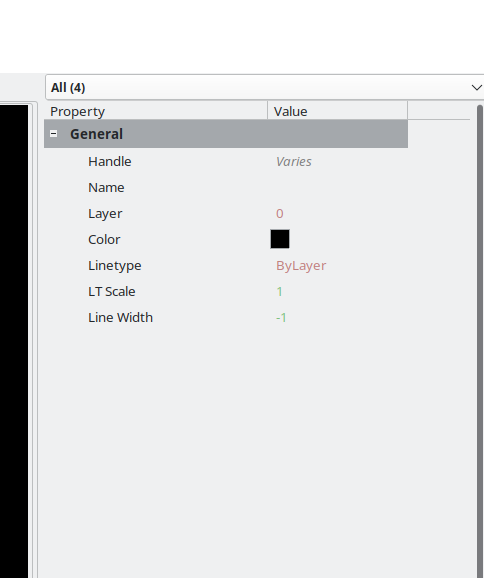
The selection filter combo at the top of the Object Inspector.
Tip
To select objects on a specific layer only, first make that layer the only visible layer in the Layer Manager, then use Ctrl+A. Alternatively, use the selection filter to limit selection by entity type.
3.6.4. Cursor Modes
The cursor appearance changes to indicate the current interaction mode:
Full crosshair — the default cursor, shown when idle, during drawing tools, and whenever a command prompts for a point (e.g. base point, destination, offset side). OSNAP is active in this mode.
Pickbox only — shown when a command prompts for object selection (e.g. OFFSET “Select object to offset:”, ERASE “Select objects:”). OSNAP is disabled in this mode so snapping does not interfere with object picking.
3.6.5. Right-Click Behaviour
Right-click context depends on the current state:
Context |
Action |
|---|---|
Drawing tool active (polyline with points) |
Finishes the entity (closes/ends the polyline). |
Drawing tool active (circle before first click) |
Cancels the tool. |
Command object-selection phase |
Confirms the current selection (equivalent to Enter). |
Civil points selected, no active tool |
Opens the point group context menu (see below). |
No active tool or command |
Repeats the last command. |